Send emails from your own business address
You can now connect your own email account so confirmations, receipts and notifications go out from your business's address.
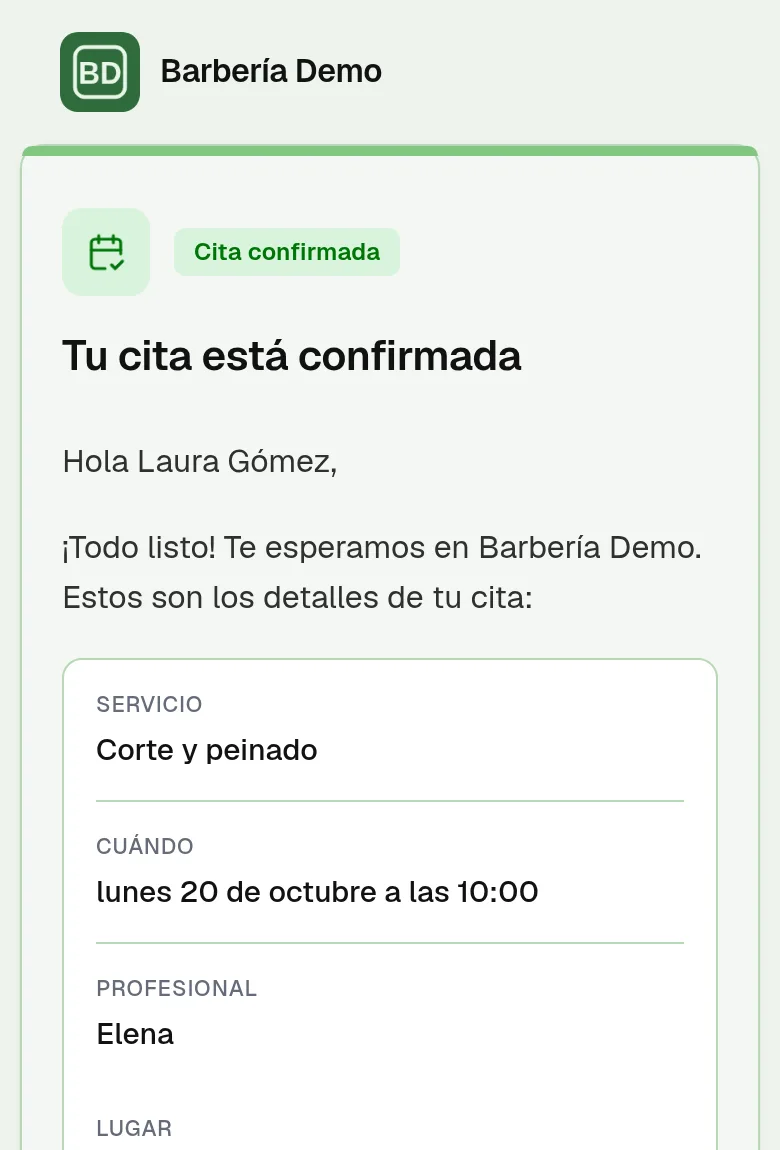
Until now, the emails Teraliv sends on behalf of your business went out from Teraliv's account, with your business name as the sender, and your clients' replies reached your contact email. That still works the same if you don't change anything. What's new is that you can now connect your own email account so emails go out from your address.
Why use your own address
- Your clients get emails from an address they already know, like the one on your website.
- Replies go straight to your inbox.
- You can split your emails: one account for bookings and another for checkout, for example.
How to add an account
- 1
Go to «Ajustes › Correo» (Settings › Email)
The tab appears if you manage the business's notifications.
- 2
Click «Añadir cuenta» (Add account) and choose your provider
There are ready-made options for OVH, Gmail, Microsoft 365, IONOS and Zoho, among others.
- 3
Fill in the details
The sender, server, username and password for the account. The password is stored encrypted.
- 4
Decide what it's used for
Mark it as the default account or choose the modules that use it, and save.
- 5
Click «Enviar prueba» (Send test)
That way you check the account works before your clients rely on it.
One account for each job
You can assign a different account to bookings, checkout, team or website. Each module uses a single account and everything else goes through the default one. So appointment confirmations can come from your bookings address and receipts from your admin address.
Some emails always go out from Teraliv's account, whatever you set up: login emails, password changes and emails from Teraliv support. They're about your Teraliv account, not your business.
If your mail server fails
Any mail server can have a one-off error. So that important emails, such as an appointment confirmation, don't get lost, turn on «Si esta cuenta falla, enviar con la cuenta de Teraliv» (If this account fails, send with the Teraliv account). If your account doesn't respond, the email still goes out from Teraliv's account with your business name.
- In «Ajustes › Envíos» (Settings › Deliveries) those emails are marked «Vía Teraliv» (Via Teraliv).
- Whoever set up the account gets an alert to check it, at most once a day.
Tip
Publish your domain's SPF and DKIM records. If you're not sure how, your email provider explains it in its help pages. That keeps your emails out of the spam folder.
Emails keep the design with your business's logo and colours, and in «Ajustes › Envíos» you can still see the status of each one: sent, delivered, failed or bounced. Failed ones can be resent. If you get stuck setting it up, click «Ayuda» (Help) in the dashboard and we'll give you a hand.
The confirmations and reminders your clients receive are part of online booking, and emailed receipts are part of checkout.
Branded emails at every step
Confirmation, reminder, receipt and review request with your business's logo and, now, from your own address.
You may also like
In-app support with the Help button
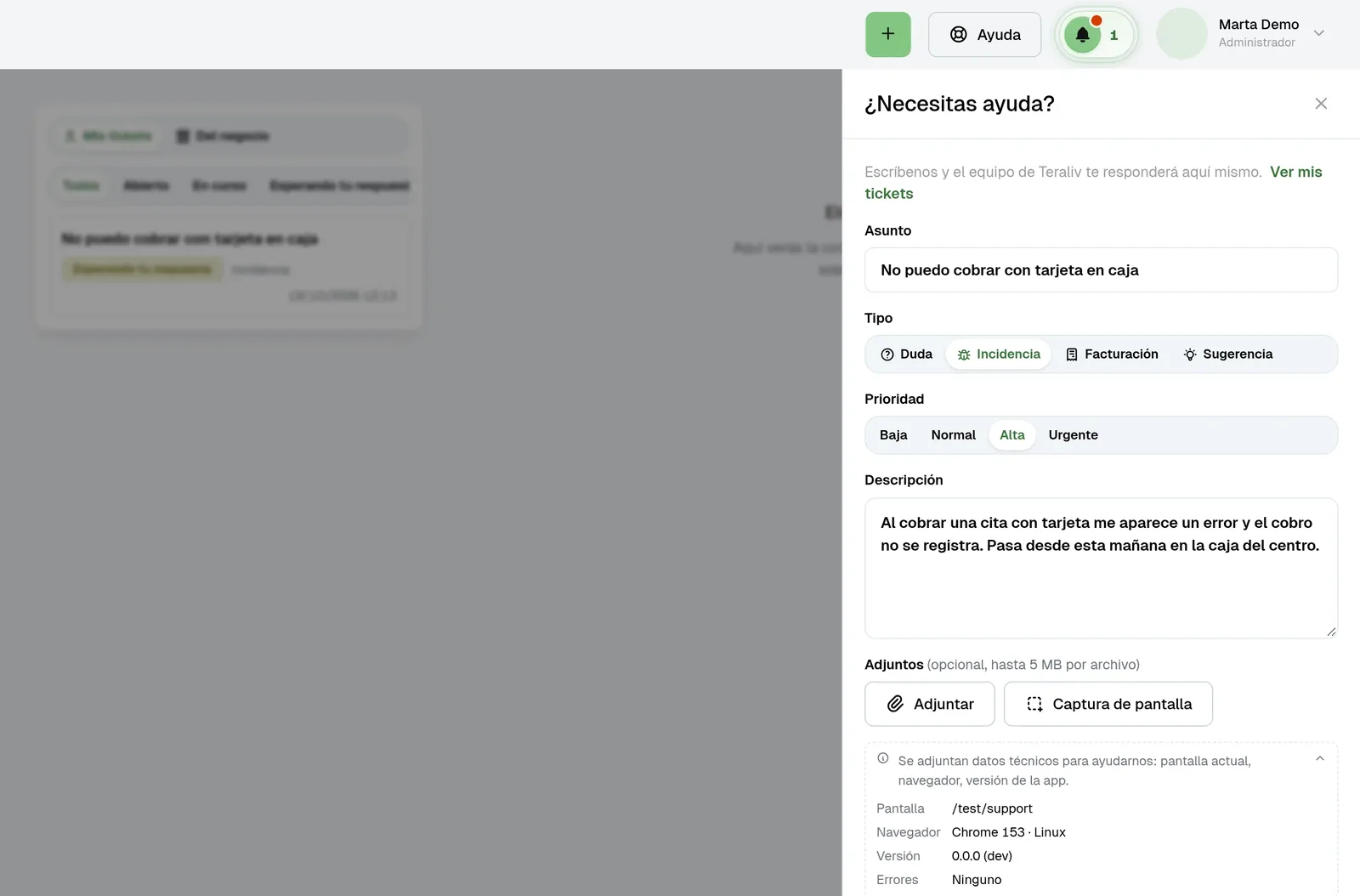
Click «Ayuda» (Help), tell us what's happening and follow the conversation in «Mis tickets» (My tickets). Your business emails also get a new look with your logo and colours.
«?» help on every screen and team checkout
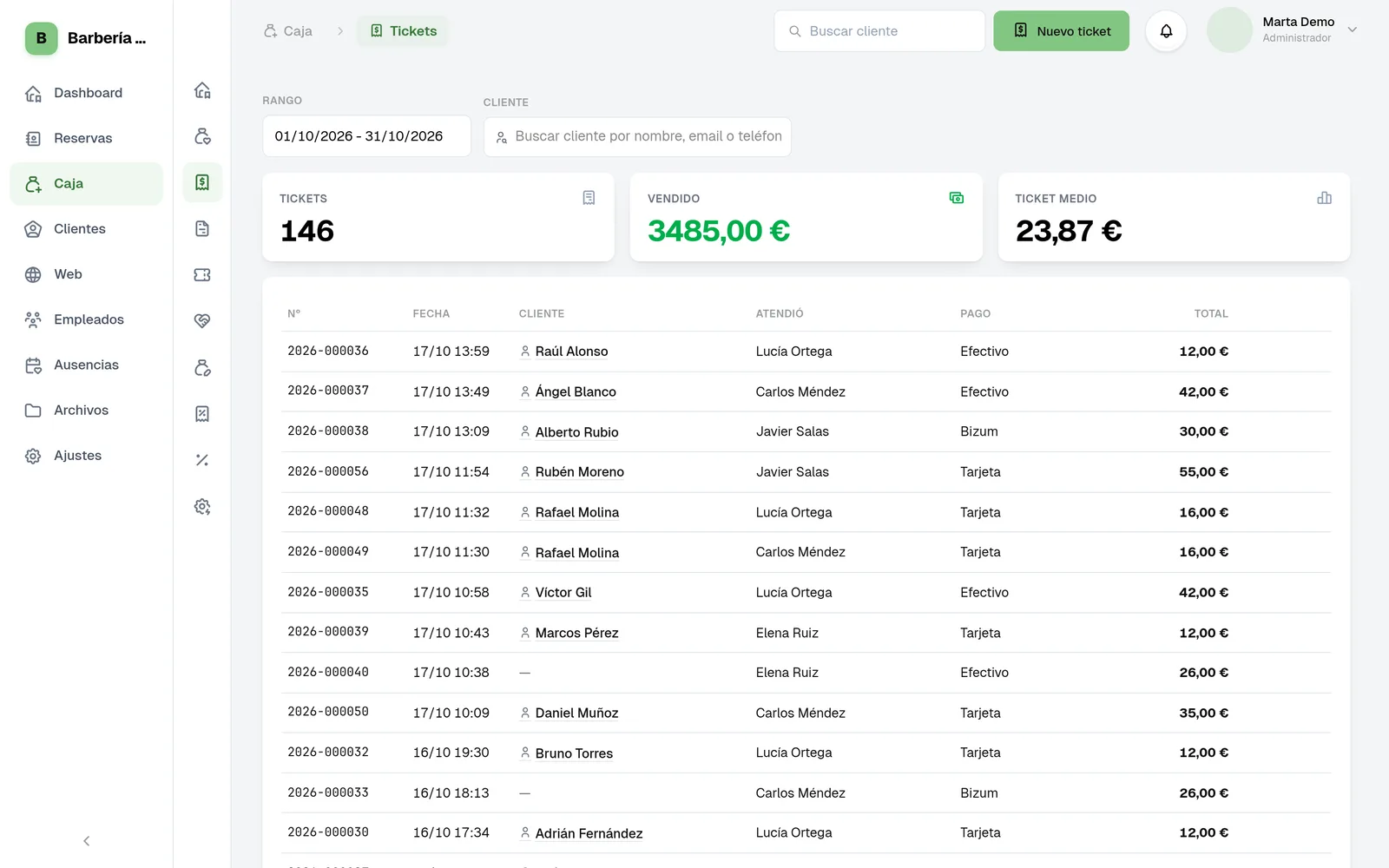
Every dashboard screen now has its own «?» help, and checkout separates your figures and your team's from the whole business, now in «Caja › Movimientos».
Targets, forecasts and document signing
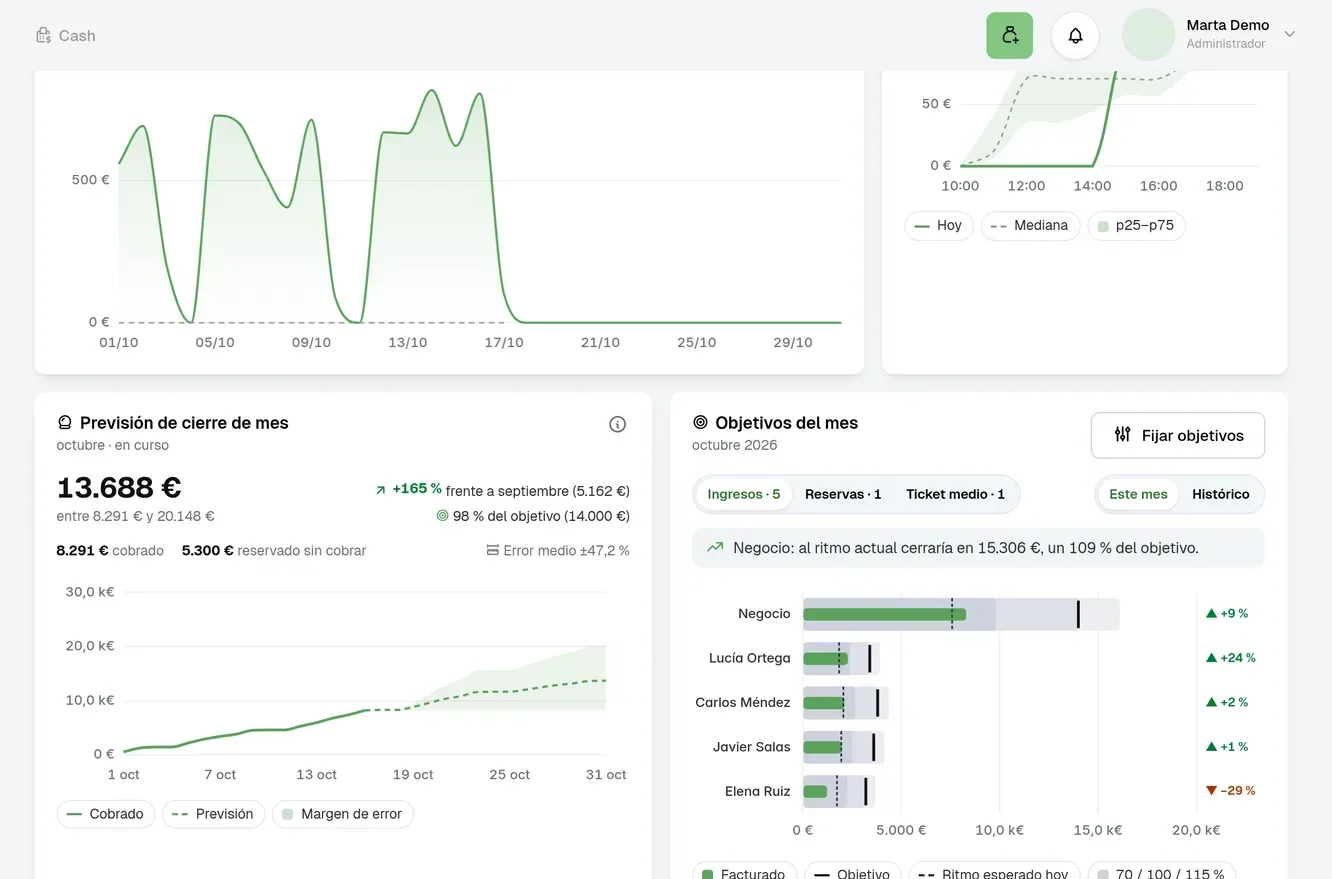
Set targets for the month, see how it will end with the forecast, request documents with a link and get your team to sign without printing anything.