How to publish your business website
Build your pages with blocks, get the title ready for Google, share the draft with a link and publish it when it's ready.
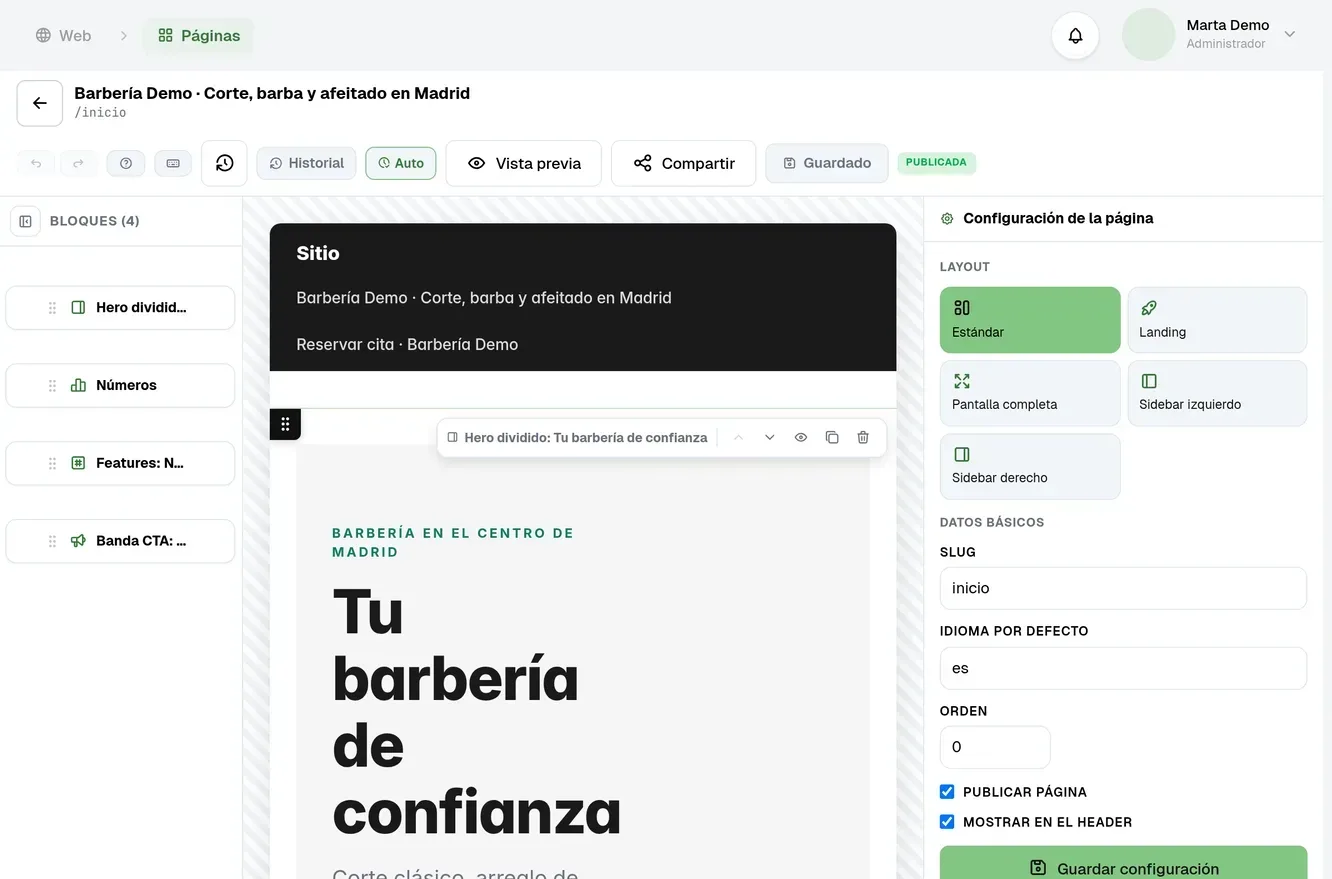
With Teraliv's website module you can have your business website with booking built in, without relying on anyone else to change your opening hours or a photo. This guide takes you from a blank page to a published one.
1. Set the site-wide styles
Start with «Web › Estilos» (Website › Styles): brand, colours, fonts, spacing, header, menu and footer. The preview shows changes instantly, but nothing is applied to the website until you click «Guardar cambios» (Save changes). Doing this first saves you tweaking page by page.
2. Create the page
Your first page
- 1
Click «Nueva página» (New page)
In «Web › Páginas» (Website › Pages), and enter its address (slug), for example /servicios.
- 2
Open it and build the content
With «Añadir bloque» (Add block) or starting from «Plantillas» (Templates): header, text, galleries, FAQs, forms, booking…
- 3
Edit each block
Select it and change its «Contenido» (Content) and «Diseño» (Design) in the right-hand panel.
- 4
Save
With the save button or Ctrl+S. With «Auto» on, it saves by itself a few seconds after you stop editing.
In the editor you have the block structure on the left, the preview in the middle and the settings on the right. If you make a mistake, undo with Ctrl+Z and redo with Ctrl+Shift+Z.
3. Get it ready for Google
In the page's SEO settings you write the title and description that will appear on Google and when the link is shared. Below them you have a preview and some checks with warnings. If your website is in several languages, switch language at the top of the panel; empty fields use the value from the base language.
4. Show it before publishing
Nobody can see a draft page on your website. If you want someone to review it, create a temporary link from «Compartir vista previa» (Share preview): it works even if the person doesn't have an account and stops working when it expires.
5. Publish
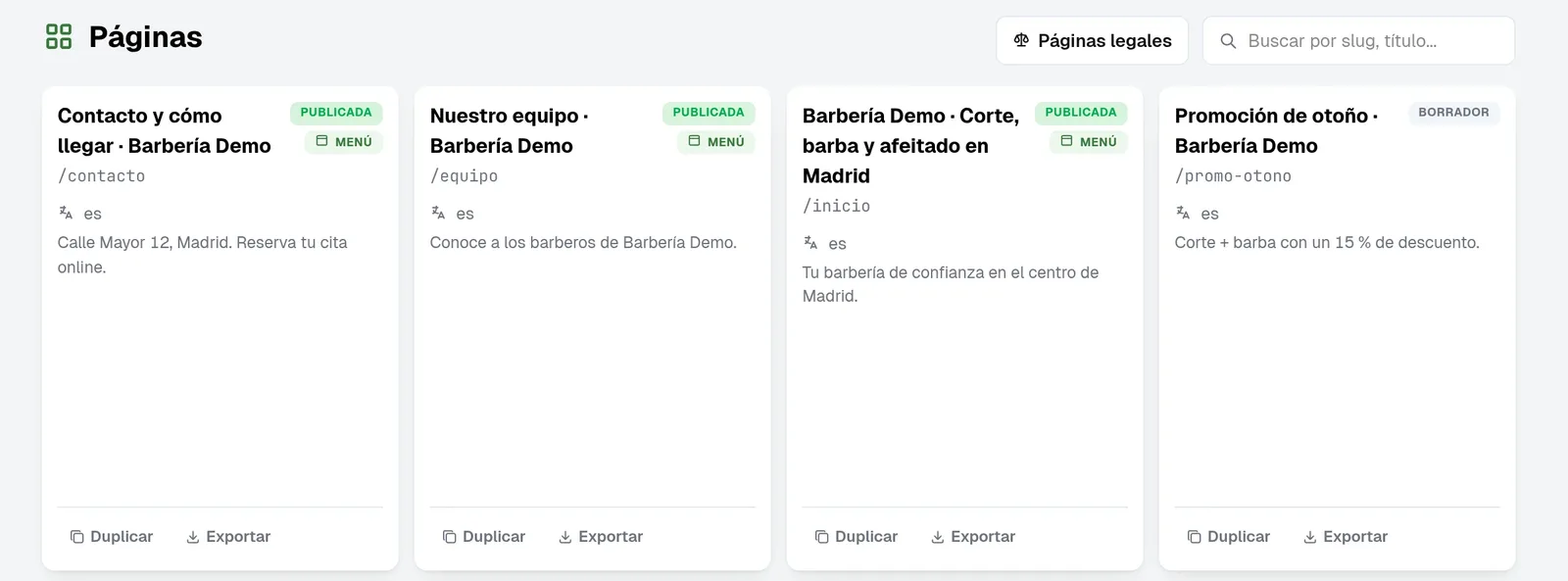
Tick «Publicar página» (Publish page) and click «Guardar configuración» (Save settings). The page appears at its address, and the «menú» (menu) label tells you whether it shows in the site header.
Careful with published pages
There's no separate draft version: on a published page, every change you save shows on the website within seconds. For big changes, use «Duplicar» (Duplicate), work on the draft copy and publish it when it's ready.
Before you call it done
- Legal pages: Teraliv generates the legal notice, privacy policy and cookie policy from your business details and links them in the footer. Check them with a professional if you have any doubts.
- Forms: create a form in «Formularios» (Forms) and add it with the form block; responses arrive in «Bandeja» (Inbox).
- Images: always fill in the «Alt» text in «Imágenes» (Images); it helps people using screen readers and search engines.
- Your domain: your website address is set in «Ajustes › Dirección» (Settings › Address).
Later, in «Web › Dashboard» you'll see visits, bookings coming in through the website and form submissions. Everything the module includes is on Website & custom domain, and how booking is built in on online booking.
Your website, with booking built in
Block editor, templates, multiple languages and your own domain, connected to your calendar.
You may also like
How to set up your notifications
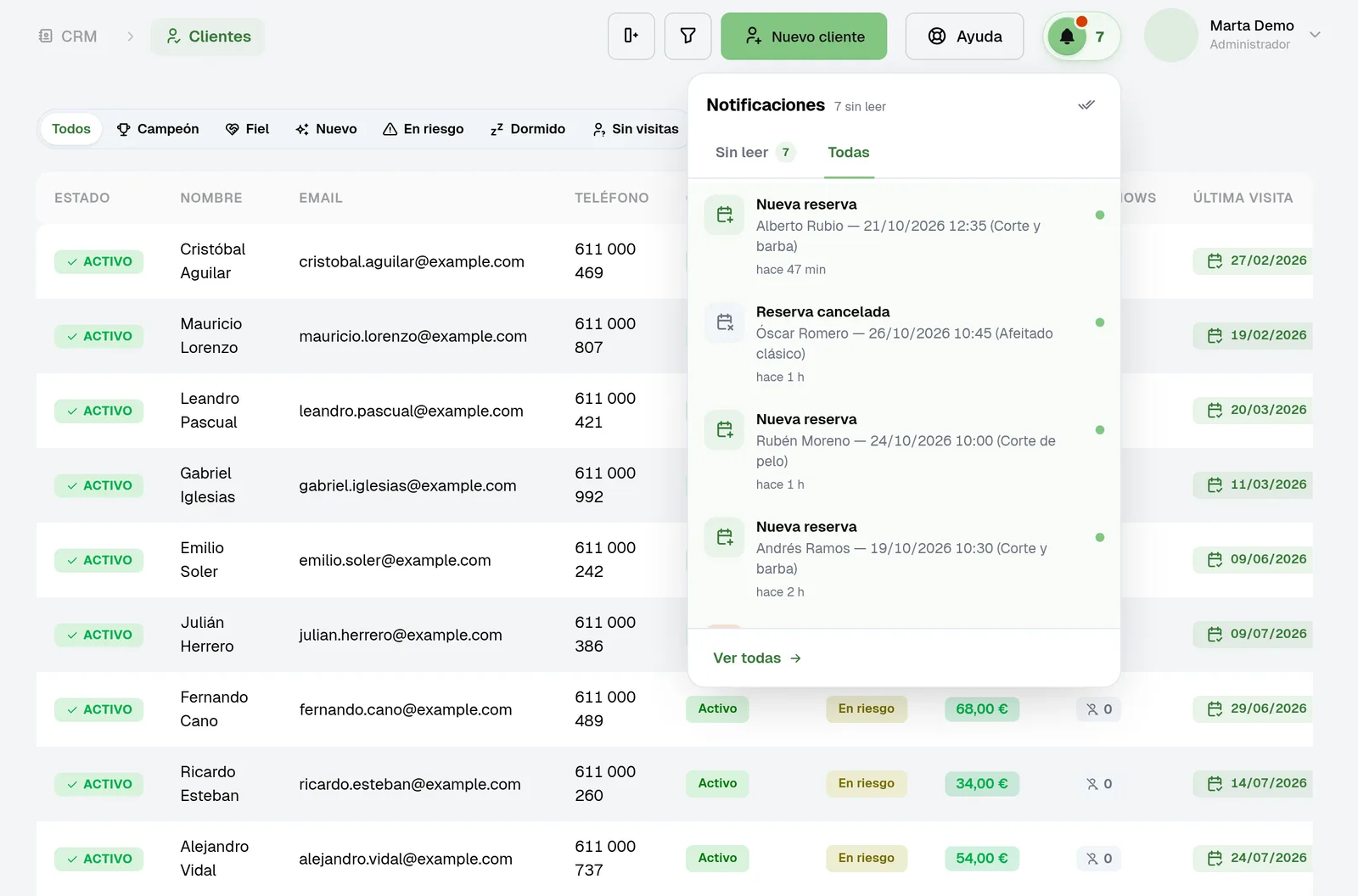
Choose which alerts you get and on which channel, link Telegram in a minute and set up the daily summary and your clients' appointment reminders.
How to manage staff time off and holidays
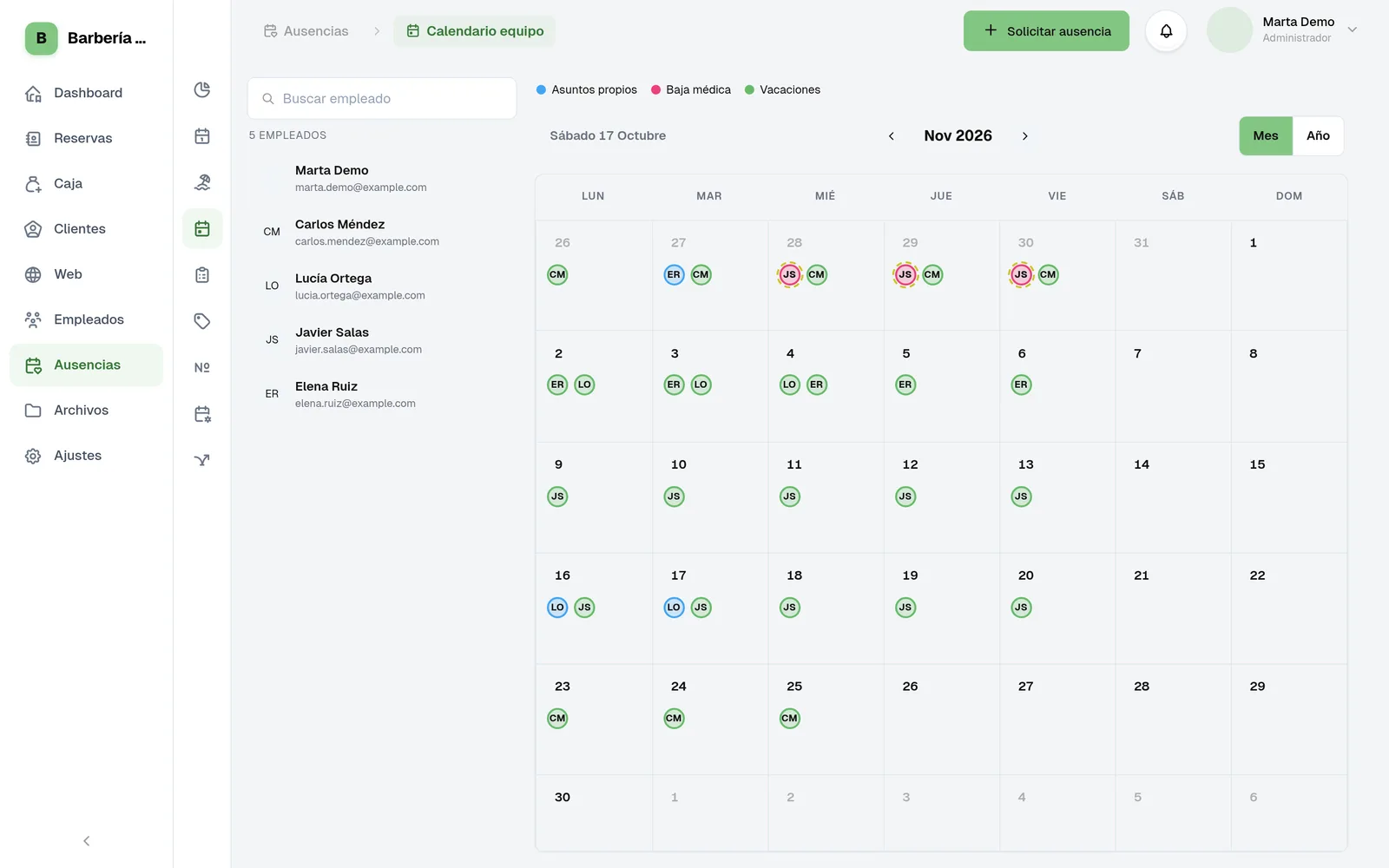
Set up absence types and your work calendar once, and let your team request their days in Teraliv while the calendar blocks itself.
How to balance the till at the end of the day
Cash-up by method, payments without a receipt, tips and appointments waiting to be closed: the five-minute routine to balance your till every night.