How to set up your notifications
Choose which alerts you get and on which channel, link Telegram in a minute and set up the daily summary and your clients' appointment reminders.
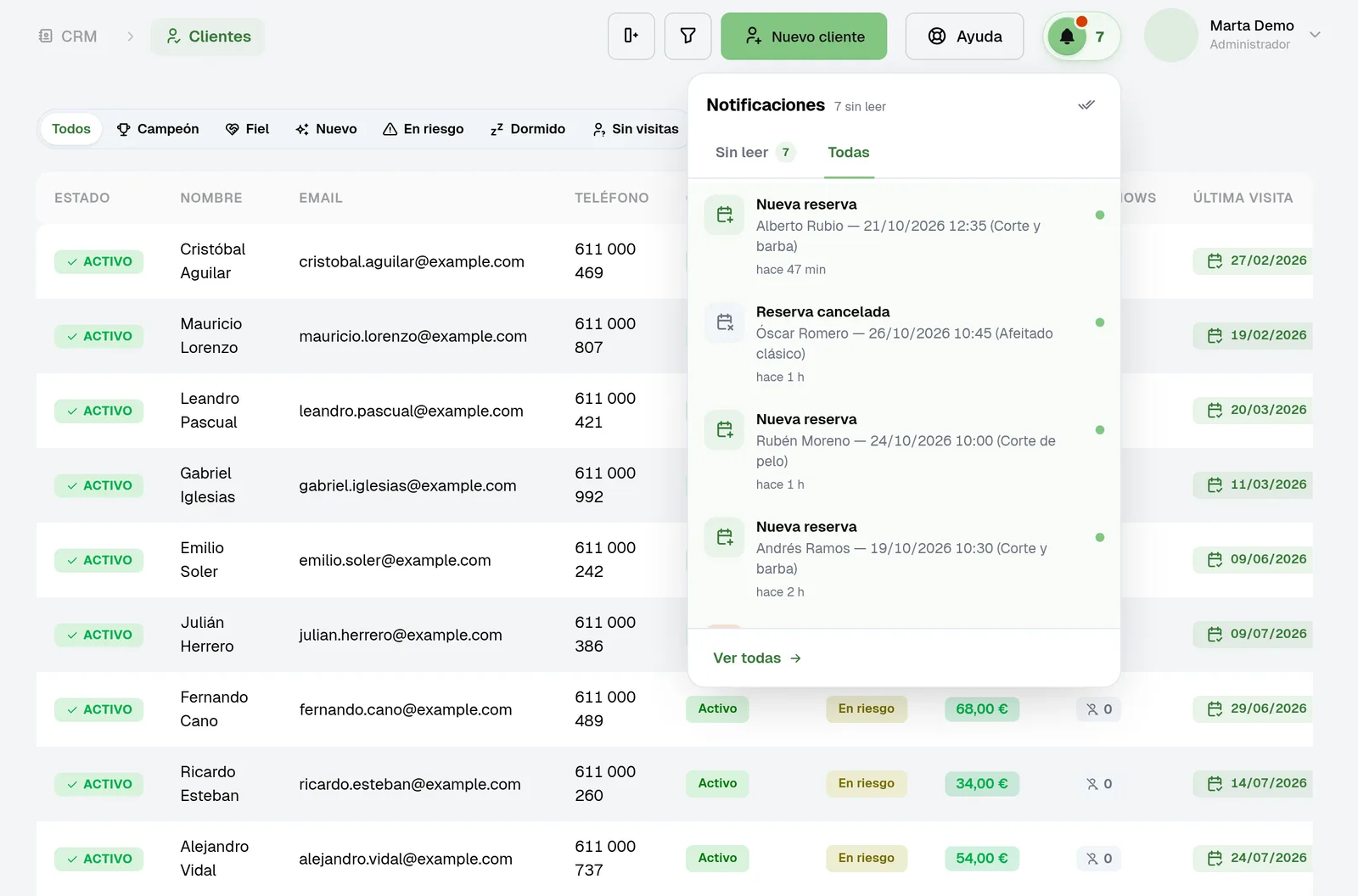
Teraliv lets you know when a booking comes in, an appointment is cancelled, someone requests holidays or support replies to you. Set up well, these alerts save you checking the dashboard every few minutes; set up badly, you end up ignoring them. Here's how to get them just right.
The bell: your notifications inbox
The bell at the top of the screen shows your business's alerts instantly, without reloading the page. In the inbox you can filter by «Sin leer» (Unread) or «Todas» (All), by type or with the search box. Some alerts can be dealt with right there, such as confirming or rejecting a booking or approving time off, if you have permission to do so.
Tip
Use the selection button to mark several alerts as read at once.
Choose what you get and where
Open your user menu, top right, and click «Preferencias de notificaciones» (Notification preferences). Each row is a type of alert and each column a channel: in the app, by email or by Telegram. Turn on only what you want to receive; changes are saved instantly.
You only see alerts for the modules your business has, plus security and support alerts. A good starting point is to send new bookings and cancellations to Telegram and keep everything else in the app.
Linking Telegram
- 1
Click «Vincular Telegram» (Link Telegram)
In your notification preferences.
- 2
Tap «Iniciar» (Start) in the chat that opens
On a computer, scan the QR code with your phone.
- 3
Go back to Teraliv
Within a few seconds the status changes to «Vinculado» (Linked) and you can turn on the Telegram column.
The linking link expires after 15 minutes. As well as the alerts you turn on, you also get your account recovery codes on Telegram. You can unlink it whenever you want from the same screen.
The daily schedule summary
If you see clients, you can get your appointments every day with the client, service and notes. In your preferences you choose «Como el negocio» (Same as the business), «Activado» (On) or «Desactivado» (Off), and the time. If the time is before 12 noon you get that day's appointments; if it's later, the next day's. It isn't sent on your days off or when you're absent, or if you have no appointments.
For whoever runs the business
In «Ajustes › Avisos» (Settings › Notifications) you set up the business's scheduled alerts:
- Appointment reminder: sent to the client as far in advance as you choose, only for confirmed appointments and through the channels they have turned on and accepted.
- Daily summary: the default time for the whole team; each professional can change it in their preferences.
- Notification templates: the wording of each automatic alert on each channel, with a preview and «Restaurar por defecto» (Restore default).
Times follow the time zone set in «Datos del negocio» (Business details). And in «Ajustes › Envíos» (Settings › Deliveries) you can see whether each email or message arrived or failed, and resend the failed ones.
Client reminders are part of online booking, and the inbox and daily summary work alongside the calendar.
Fewer missed appointments
Confirmation when they book, a reminder before the appointment and a link to change it if something comes up.
You may also like
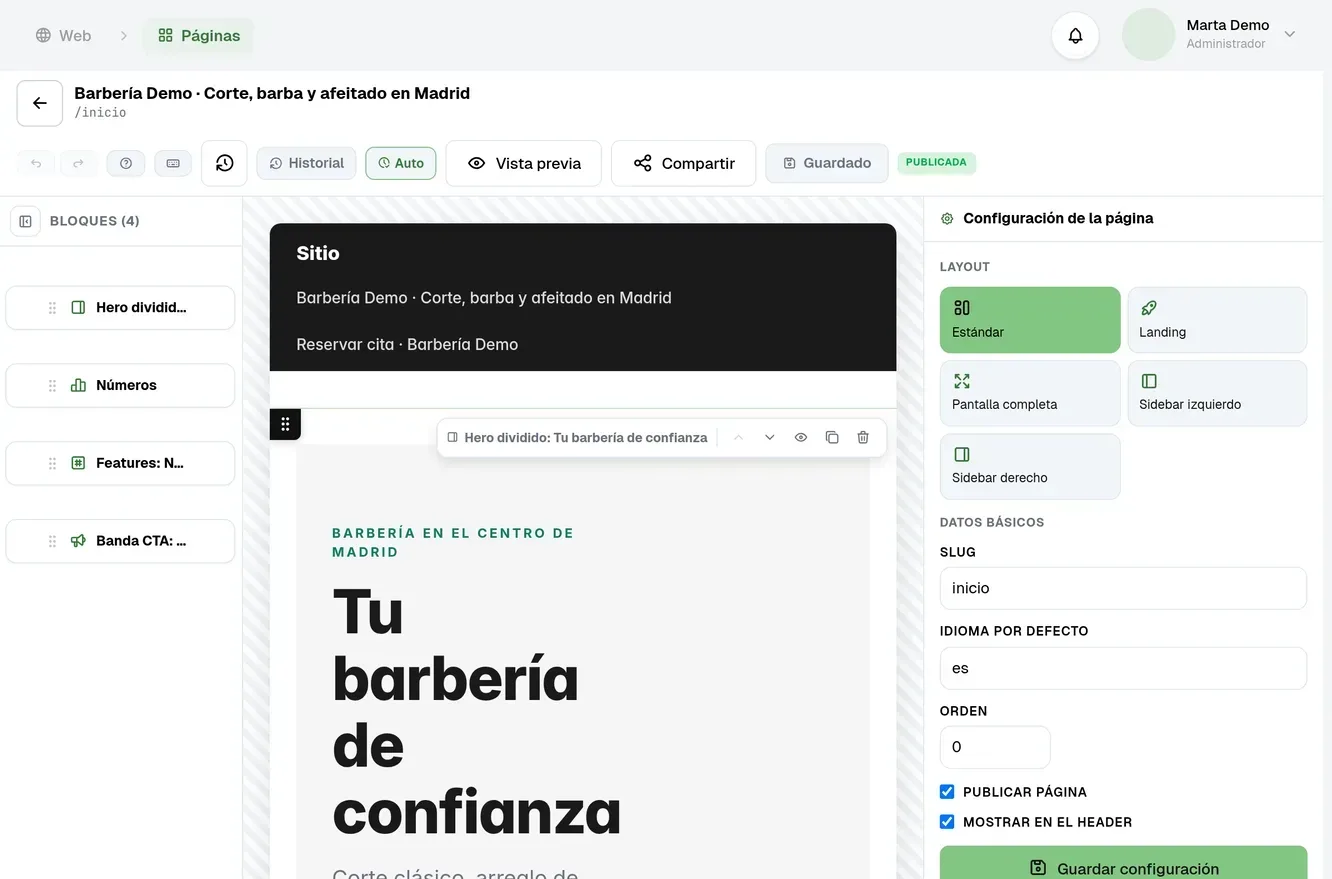
How to publish your business website
Build your pages with blocks, get the title ready for Google, share the draft with a link and publish it when it's ready.
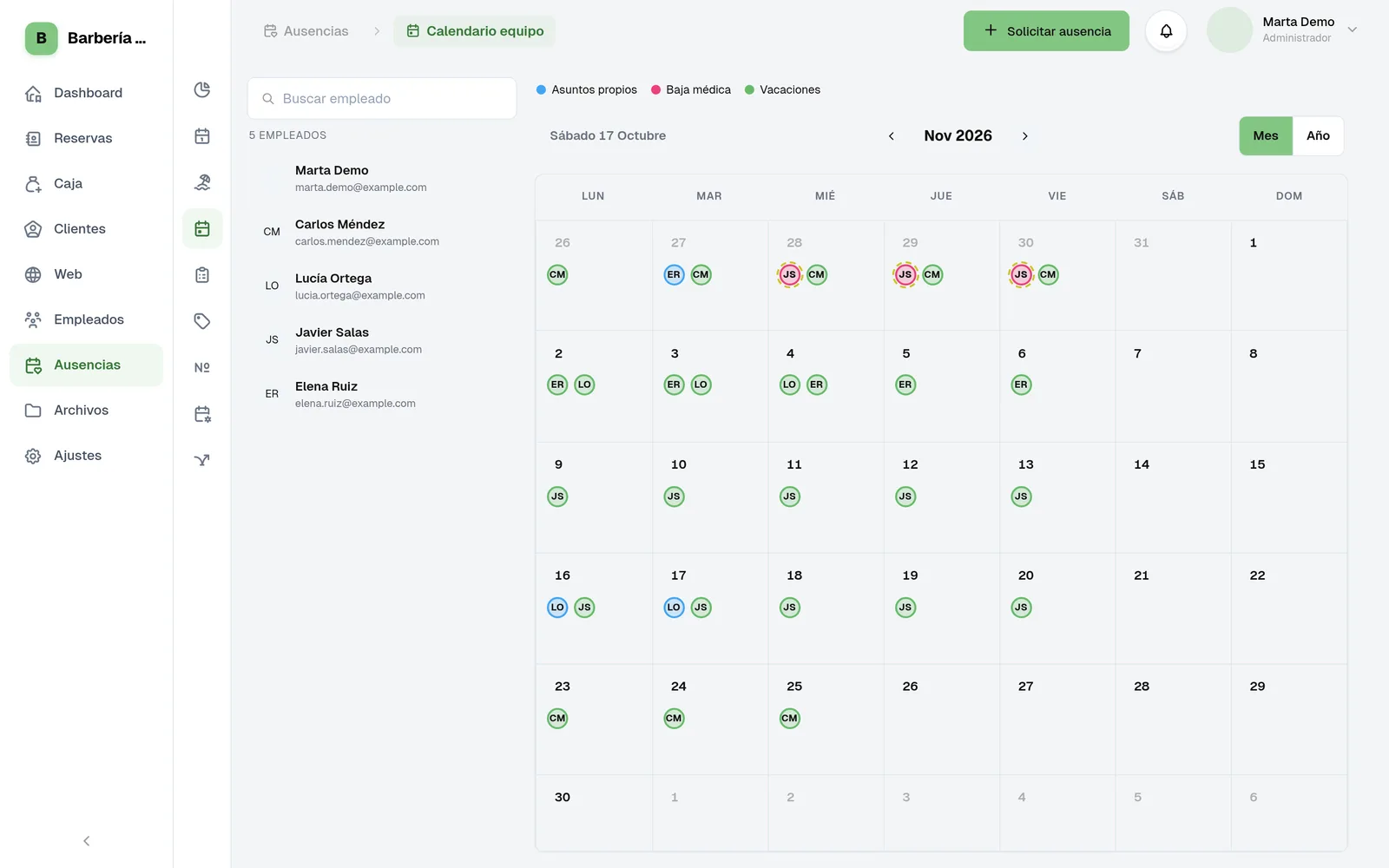
How to manage staff time off and holidays
Set up absence types and your work calendar once, and let your team request their days in Teraliv while the calendar blocks itself.
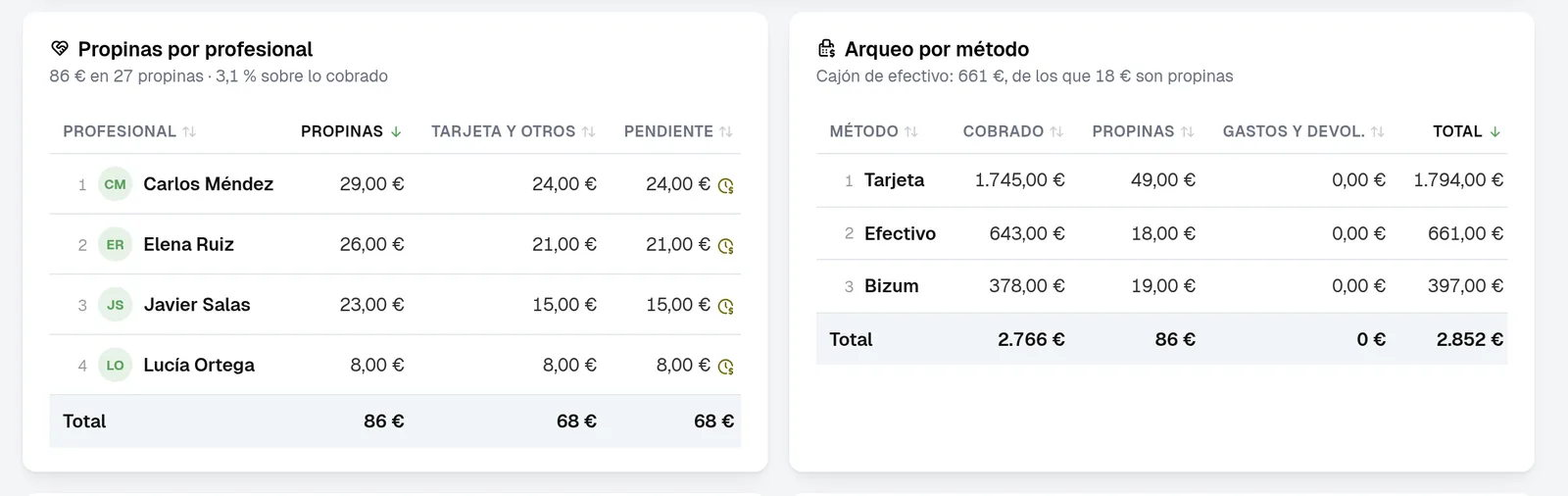
How to balance the till at the end of the day
Cash-up by method, payments without a receipt, tips and appointments waiting to be closed: the five-minute routine to balance your till every night.