How to manage staff time off and holidays
Set up absence types and your work calendar once, and let your team request their days in Teraliv while the calendar blocks itself.
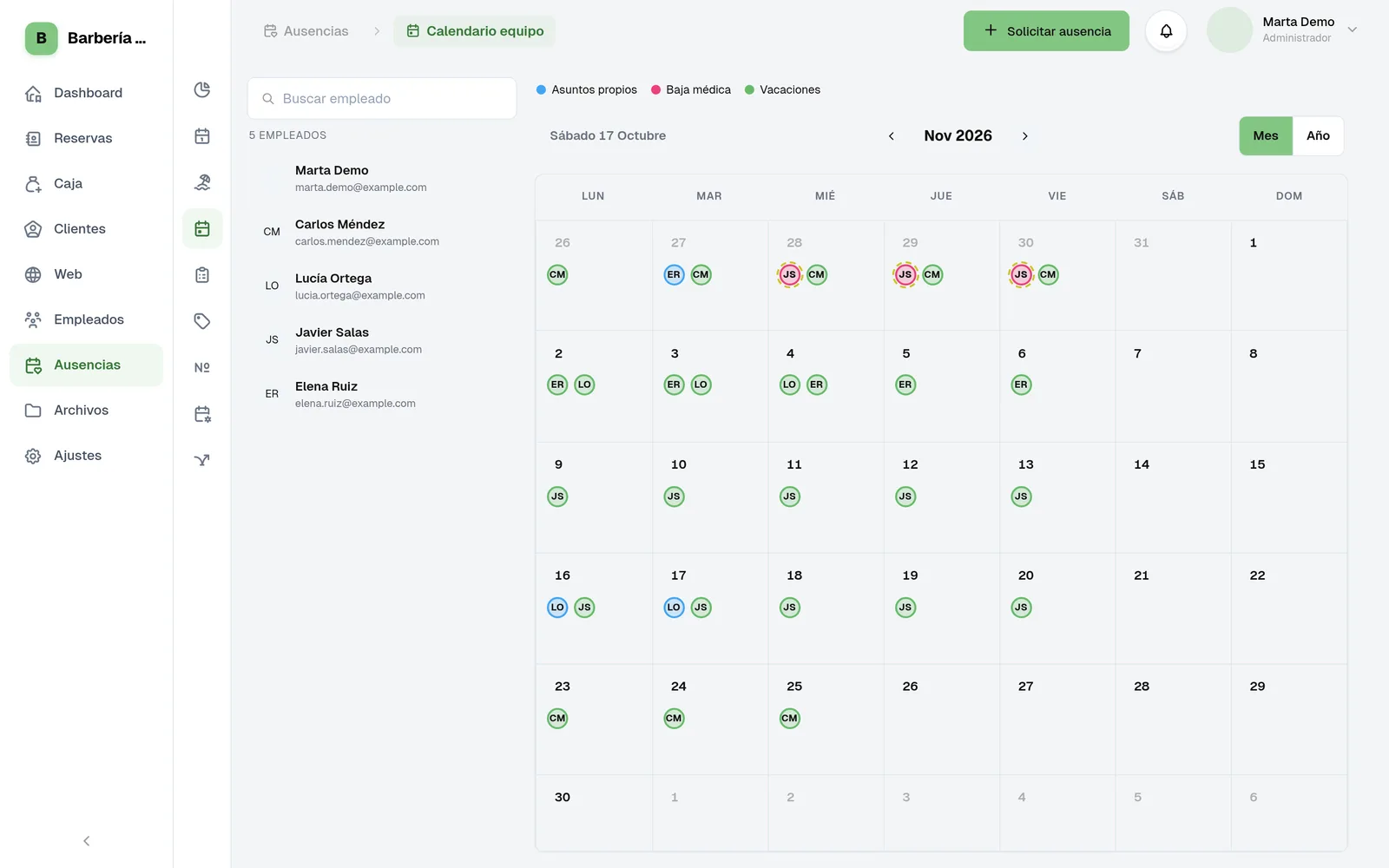
Holidays written on a piece of paper, leave nobody remembers and a calendar left open on the day someone's off sick: it happens in any business with a team. In Teraliv, time off is requested, approved and blocks the calendar all in one place. Here's how to get it going.
1. Define your absence types
Each type sets how many days a year it gives, how they're counted and what rules apply: holidays, personal days, sick leave, other leave… In «Ausencias › Tipos» (Time off › Types), click «Tipos recomendados» (Recommended types) to create in one go the standard leave types under Spanish employment law that you don't have yet, or «Nuevo tipo» (New type) for one of your own.
- «Días al año» (Days per year) and «Cómputo» (Counting): the default balance and whether only working days or all calendar days count.
- «Antelación mínima» (Minimum notice): requires requests to be made that many days in advance.
- «Requiere documento» (Requires document): the request isn't approved without supporting documents.
- «Permite ausencias sin fecha de fin» (Allows open-ended absences): for sick leave that ends when the person is signed fit to work.
If a person or a department has a different number of days, you set it as an exception in the day allocations, without touching the type.
2. Set up the work calendar
In «Ausencias › Calendario laboral» (Time off › Work calendar) you set which days are working days. Tick the days of the week and click «Guardar patrón» (Save pattern); then, with «Nueva excepción» (New exception), add bank holidays and special days. This is the basis for counting the working days in each absence and for calendar availability.
Tip
A hair salon that's closed on Mondays only has to untick Monday in the weekly pattern. Exceptions can apply to the whole business, one structure or one person.
3. How someone requests their holidays
- 1
Go to «Mi Calendario» (My calendar)
They see their year at a glance and how many days they have left of each type.
- 2
Click «Solicitar ausencia» (Request time off)
Or select the days directly on the calendar.
- 3
Choose the type and dates
And attach supporting documents if the type requires them.
- 4
Send the request
It stays pending until their manager approves it.
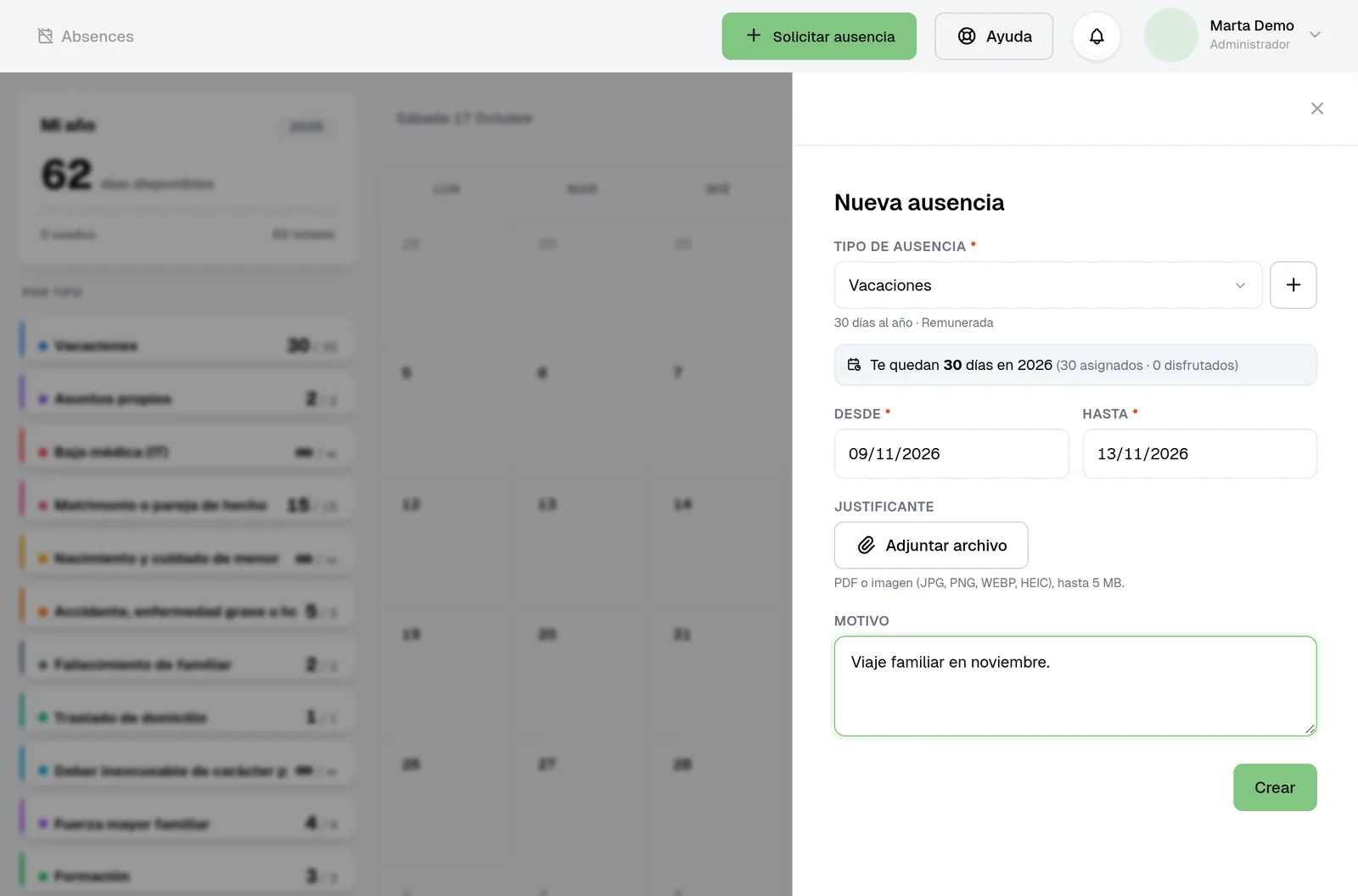
4. Approve or reject
The manager gets a notification and sees their team's requests in «Ausencias equipo» (Team time off). Opening one shows the dates, days and documents, and they click «Aprobar» (Approve) or «Rechazar» (Reject), with a reason if they like. The person gets the decision straight away. If someone asks to cancel time off that's already approved, the manager chooses «Aprobar cancelación» (Approve cancellation) or «Mantener ausencia» (Keep absence).
Approved time off blocks that person's calendar, so nobody can book them in, not even through online booking. In «Calendario equipo» (Team calendar) the manager sees everyone's time off and can request time off on someone's behalf.
5. Close the year
If a type allows carry-over, go to «Ausencias › Traspasos» (Time off › Carry-overs), enter the year you're closing and click «Generar pendientes» (Generate pending). Teraliv suggests the unused days person by person; you adjust how many move to next year and approve or reject each proposal.
All of this, plus each person's balance and CSV and PDF exports, is on Time off & holidays. And if you also want to record working hours, see Team & time tracking.
Holidays without paperwork or clashes
Requests, approvals, balances and a blocked calendar, all connected.
You may also like
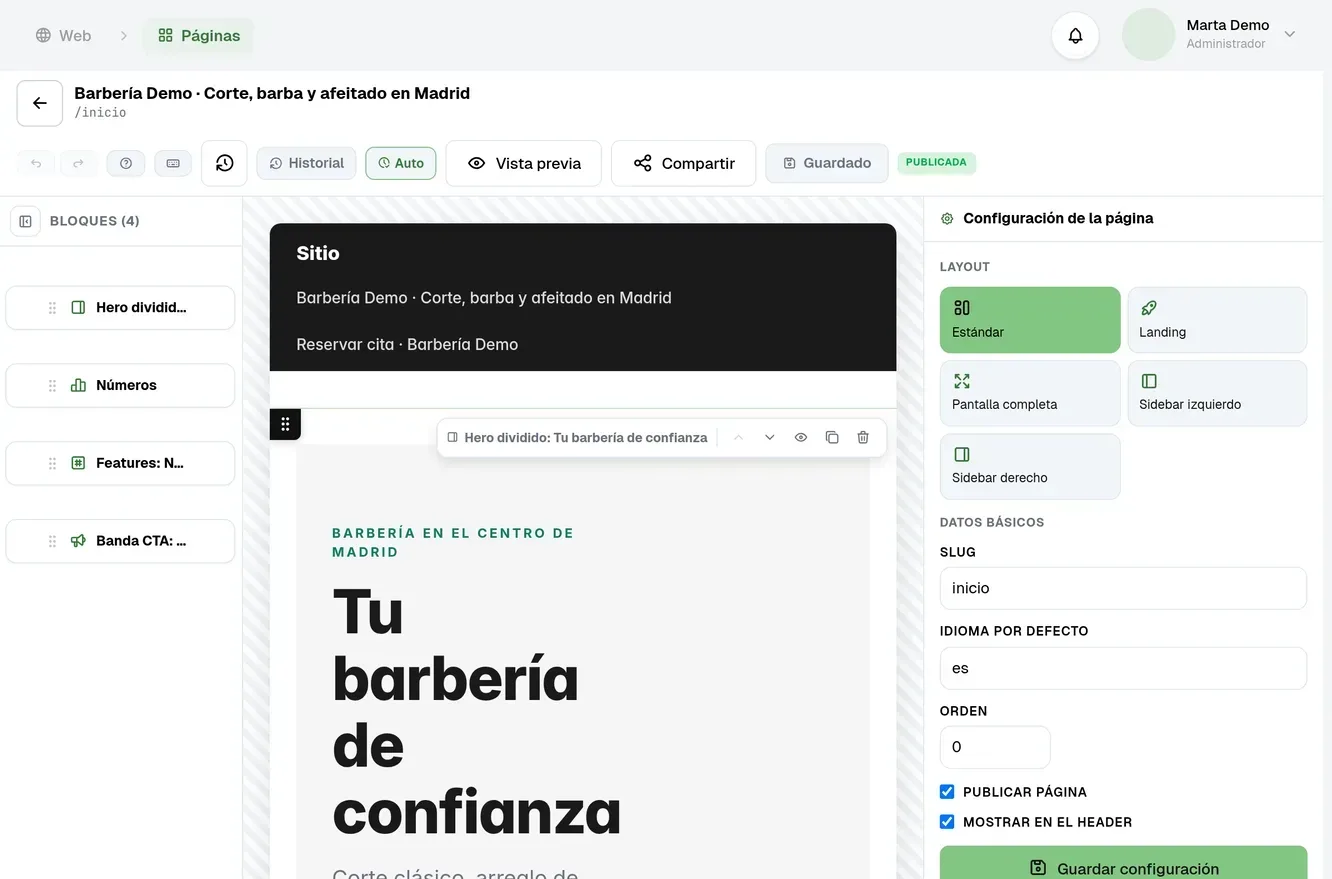
How to publish your business website
Build your pages with blocks, get the title ready for Google, share the draft with a link and publish it when it's ready.
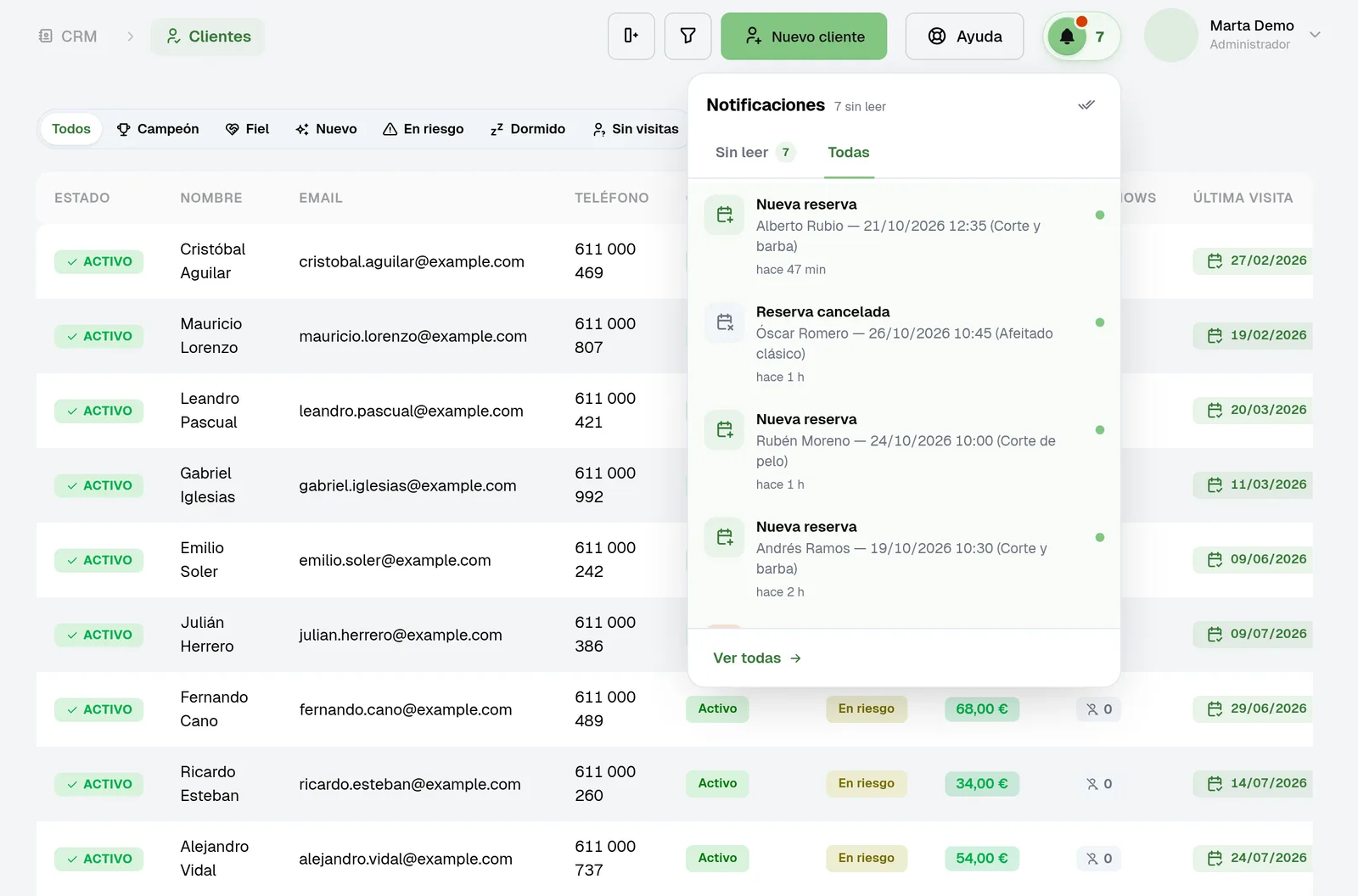
How to set up your notifications
Choose which alerts you get and on which channel, link Telegram in a minute and set up the daily summary and your clients' appointment reminders.
How to balance the till at the end of the day
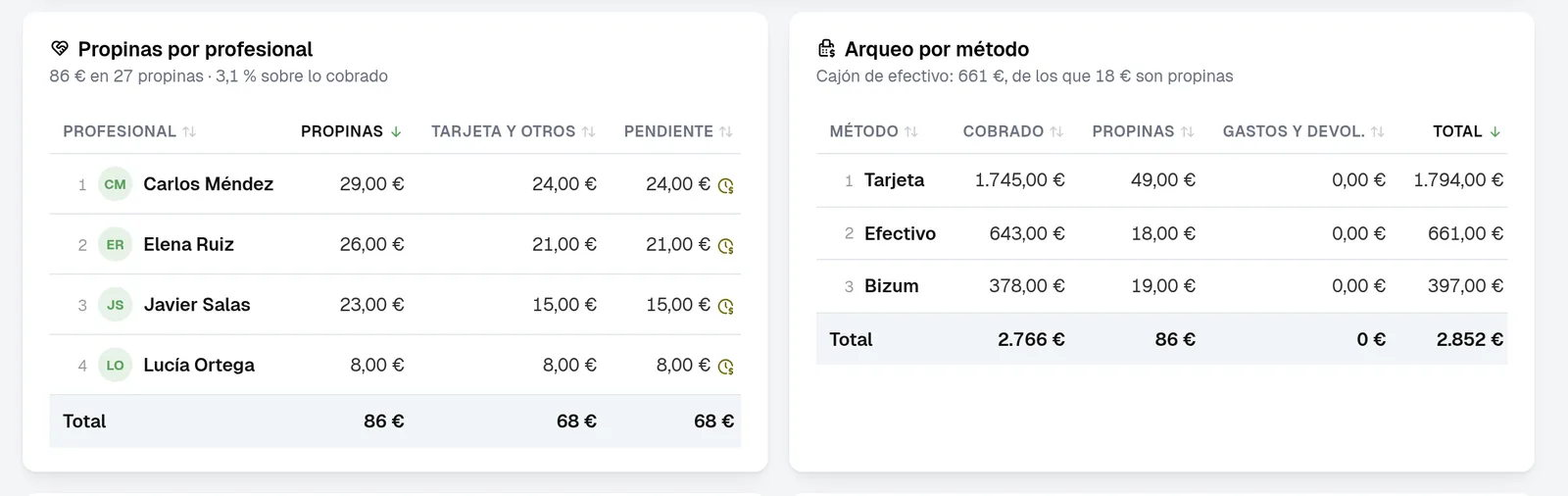
Cash-up by method, payments without a receipt, tips and appointments waiting to be closed: the five-minute routine to balance your till every night.